Remove Background from Images Online for Free
Create transparent PNGs for product photos, portraits and social designs. Explore free AI background removal, image format choices and official product photo guidance.
30th Oct 2026
A good product photo can come with a distracting kitchen counter. A portrait you like might have the wrong setting for a profile graphic. Removing the background lets you keep the useful part of the picture and give it a place in a new design.
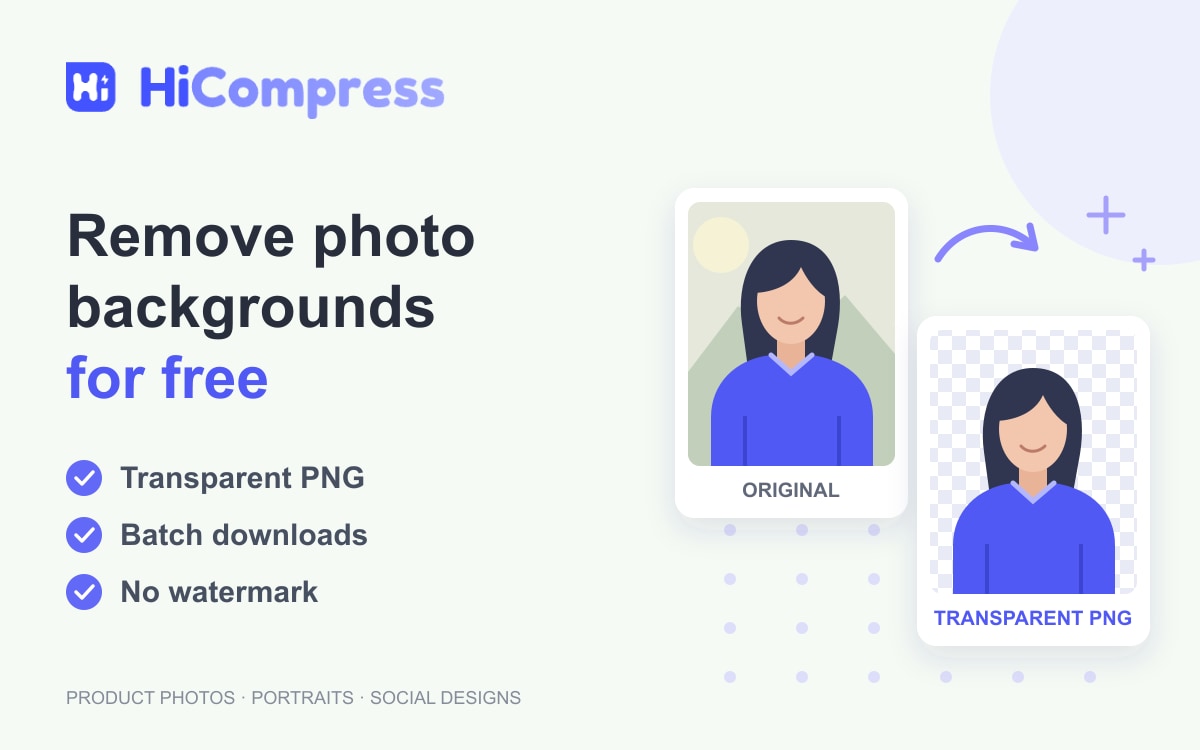
HiCompress uses AI to separate the subject from its surroundings and creates a transparent PNG. Background removal, individual downloads and batch downloads are completely free, with no watermark. The photos are processed locally in your browser rather than sent to a server for AI processing.
The most useful result is not simply a picture with less background. It is a reusable image that works in a catalog, presentation or social post without carrying its original rectangular scene into the layout.
What does a transparent background actually give you?
A transparent cutout leaves space around the subject clear. A white background fills that space with white. The difference becomes obvious when the image sits on a colored slide: a transparent portrait blends into the layout, while a white-backed portrait brings a white rectangle with it.
This is a property of the file, not just the preview. The W3C PNG specification defines an alpha channel that records opacity. With 8-bit alpha, there are 256 possible opacity levels, from 0 for fully transparent to 255 for fully opaque. Intermediate values allow partially transparent edges instead of forcing every pixel to be either solid or invisible.
That flexibility is useful for a portrait beside a headline, a product over a brand color, or several cutouts in a collage. It does not guarantee that AI will identify every strand of hair correctly; the format can preserve an edge only as well as the cutout captures it.
Where background removal is most useful
Product photos that belong together
A row of products can feel inconsistent when every image has a different tabletop, wall or room behind it. Isolating the items gives you more freedom to build a consistent catalog while retaining the actual product photography.
Shopify's product photography guidance recommends a white background to reduce visual distractions and keep attention on the item. It also emphasizes consistent framing across different angles. A transparent PNG is a useful working asset for that kind of layout: you can place it on a white canvas or another suitable background in your preferred design editor.
The final photograph still needs to represent what you sell. Background removal should not become a reason to disguise scratches, change a product's shape or remove an accessory that customers expect to receive.
Portraits, presentation graphics and social posts
A portrait cutout creates room for a name, job title or announcement beside the person. It is useful for team slides, speaker graphics and personal profile designs where the original surroundings add little to the message.
The same idea works for a handmade object in a social post or a pet in a collage. The cutout becomes one element in the composition, so its position and scale can fit the design rather than dictate it. HiCompress produces that cutout; adding a new scene, text or a colored background happens in your chosen editor.
Product image numbers worth checking before you publish
For ecommerce, a clean cutout is only part of a usable image. Framing, resolution and the destination's requirements still matter.
Google Merchant Center's image best practices recommend 1500 × 1500 pixels or larger and suggest that the product occupy 75% to 90% of the frame, with its complete silhouette visible. The guidance recommends a white or light neutral background for the main hero shot, while also allowing suitable lifestyle images. These are Google-specific recommendations, not universal rules for every marketplace.
Google's separate image link requirements announce a 500 × 500 pixel minimum for all products beginning January 31, 2027. The page also prohibits promotional overlays and watermarks on main product images. Those requirements were checked on October 30, 2026; the future minimum should not be confused with a requirement already in effect on that date.
For a finished composition that needs different dimensions, the HiCompress image resizer can create a resized copy. Increasing the pixel count cannot recreate missing photographic detail, so start with the clearest original you have. Background removal alone does not make a picture compliant with a marketplace's full image policy.
How to remove an image background in three steps
You can start with one photo or select several together. HiCompress accepts JPG, JPEG, PNG, WebP, AVIF and BMP files; JPG and JPEG are two extensions for the same format. The output is PNG so the removed area can remain transparent.
Step 1: Choose your photos
Open the background remover and choose Select Images, or drag your photos onto the page. You can add multiple supported images for a batch.

Step 2: Let AI separate the subject
Processing starts automatically. Use the comparison preview to inspect the original and the cutout, especially around the subject's edges. The first use may take longer while the browser loads the AI model.

Step 3: Download your transparent PNG
Choose Download PNG for one completed image. When several images are ready, the download button saves the completed PNG files together as a ZIP.

Why download PNG instead of JPG?
A JPG can be a practical finished photograph when the background is already part of the design. It cannot keep the clear space around an isolated subject: MDN's image format guide explains that JPEG has no alpha channel, while PNG supports transparency. Saving a cutout as JPG therefore loses that transparent background.
| Your next use | A practical file choice | What to keep in mind |
|---|---|---|
| Place a cutout in slides, collages or a design editor | Transparent PNG | Keep a reusable copy with the background clear. |
| Publish an image that still needs transparency on the web | PNG or WebP | Check what the destination accepts and compare the finished files. |
| Share a finished photo on a fixed background | JPG, if accepted | The background becomes part of the picture. |
WebP is another format that supports transparency. Google's WebP documentation reports lossless WebP files 26% smaller than PNGs in its linked compression comparison. That is a format study, not a measurement of HiCompress cutouts or a saving every image will achieve. This background remover downloads PNG; WebP would be a separate conversion afterward.
If the destination needs PNG and file size is the issue, the HiCompress PNG compressor offers lossy and lossless options. Keep the original cutout and compare the compressed copy, including any soft edges, before replacing a published image.
What makes a cutout look convincing?
The subject's edge often matters more than the empty space around it. Loose hair, fur and fine straps can blend into the original scene; glass or sheer fabric can contain part of the background within the subject itself. A clear, well-lit source with a distinct subject gives automatic background removal more useful information.
Even professional editing workflows treat hair as a special case. Adobe's hair selection guide describes refining the mask after automatic background removal. For a profile-sized graphic, a minor edge issue may be hard to notice. For a large product image or close portrait, it can be worth refining the cutout in an editor with masking tools.
Before reusing a PNG, look at it against both a light and a dark background. This can reveal leftover color around an edge, a missing part of the subject or a shadow that no longer fits. Treat the cutout as an image to review, with the original photo kept alongside it.
Common questions about free background removal
Is removing the background and downloading the result free?
Yes. HiCompress background removal and PNG downloads are completely free, including batch processing and ZIP downloads. The tool does not add a watermark.
Are my photos uploaded for AI processing?
No. Image processing runs locally in your browser. The browser does need to load the AI model on first use, so local image processing does not mean the website needs no network connection.
Why does my transparent PNG look white in a viewer?
A viewer may display transparent pixels over a white canvas. That does not necessarily mean the file contains a white background. Place it over a contrasting color in an editor that supports transparency to see the difference.
Can I remove backgrounds from several images at once?
Yes. Select several supported photos together. They are processed in a queue, and completed cutouts can be downloaded together as PNG files in a ZIP. Processing time varies with the device and the images.
Does background removal make the image smaller?
Not necessarily. The result is a PNG with transparency, and it can be larger than the original JPG. Removing a background and compressing a file solve different problems.
Can HiCompress add a white background or a new scene?
This page creates a transparent cutout. Place the downloaded PNG on a white canvas, a brand color or a new scene in a compatible editor to make the final composition.
